
OBS plugin providing an image source that loads images asynchronously (causing a lot less lag on load).

- OBS 33+ 64 bit on Windows, OBS 32+ 64 bit on Linux and macOS (find older releases on GitHub for 29+ support)
- Windows 11
- Linux
- occasionally tested, but not regularly
- binary build created on Ubuntu 22.04 WSL environment, therefore linked against glibc 2.35
- macOS Monterey 12.0+
- both x64 (Intel) and arm64 (Apple Silicon) supported
The original image source can cause short freezes of OBS (aka lags) when loading images, to be more precise it will often make OBS drop frames and cause the counter "Frames missed due to rendering lag" to increase, you can view this statistic in the window shown by selecting "View" and "Stats" from the OBS main window.
The async image source will be a lot less likely to cause this.
While the async image source is still busy loading an image it simply keeps on showing whatever it was showing previously.
If it was hidden or didn't have any image file configured (or an invalid/missing file) it will show nothing, if it was showing a different image then it will keep on showing this image until it finished loading the new image.
This behavior will ensure a smooth transition from one image to another (as opposed to causing flickering if the old image would always be hidden while loading a new one).
If another image load is already triggered while the previous image load wasn't finished the previous load will be aborted in favor of the new one.
If loading fails the async image source will keep on trying to load the image every second. This way if the file was locked during the last load attempt (e.g. happens when it is updated at the exact time the image source tries to read the file) it will be updated a second later (whereas the original image source would never recover from this until the image file is updated once more).
You should prefer this image source over the original one whenever images are not only (re-)loaded once on startup of OBS but also during runtime. This is the case when:
- you have "Unload image when not showing" activated on one or more images and hide/show these images during a session
- image files shown by an image source change during a session
- you sometimes add new image sources during a session
- you sometimes open the properties of image sources during a session (changing nothing and clicking cancel triggers a reload)
If you only use images that were loaded at startup and are either visible all the time or have "Unload image when not showing" unchecked if you hide/show them throughout a session this async source doesn't give you any benefits. Well, almost. Even during initial load with OBS startup the original image source can cause unnecessary audio buffering increases (the infamous "adding X milliseconds of audio buffering" in your log) while the async image source is a lot less likely to trigger this.
The original image source loads images on the main thread, blocking all rendering in OBS while it is busy loading the image. 30 FPS mean that OBS has ((1 / 30) * 1000 =) 33,33... ms time to render each frame, with 60 FPS this drops to 16,66... ms and so on. In my tests loading even relatively small images took anything from 40 to 80 ms, an animated image even 200+ ms.
This means that while loading an image OBS will almost certainly have to drop frames because it cannot render them on time. Combine this with the fact that OBS doesn't react well to rendering lag and you're in trouble, even more so if you use secondary outputs like NDI or Teleport. When reporting OBS problems caused by lag the first advice you will get is most probably that you should eliminate the source of the lag. This advice of course is correct, but what do you do if it's caused by loading images that you need to be loaded?
This async image source uses exactly the same OBS internal loading/decoding/rendering functions for the images (in fact large chunks of the code are a 1:1 copy of the original image source code), with the one difference that the functions which take the most time during loading an image are executed asynchronously on a separate thread instead of the main OBS thread. Also working multi-threaded introduces some complexity, i.e. extra code to eventually synchronize things back to the main thread after loading was finished.
Before installing make sure that OBS is not running.
The folder structure of the Windows .7z file already matches the plugin location introduced in OBS Studio 33.0, so it can be extracted either into C:\ProgramData\obs-studio or - when using portable mode - into the root directory of the portable installation. For the other operating systems see the instructions below.
🟦 Windows
For automatic installation just run the provided installer, then restart OBS. It installs the plugin into C:\ProgramData\obs-studio and needs admin permissions.
For manual installation extract the downloaded .7z file (= copy the contained plugins folder) into C:\ProgramData\obs-studio, or into the root directory of your portable OBS Studio installation.
OBS Studio 33.0 unified the plugin locations. Third party plugins are loaded from a single shared folder of the machine (or from the root folder of a portable installation), no matter where OBS Studio itself is installed:
Module   <location>\plugins\xObsAsyncImageSource\xObsAsyncImageSource.dll
Data     <location>\plugins\xObsAsyncImageSource\data\*
<location> is either C:\ProgramData\obs-studio or the root directory of the portable OBS Studio installation. Note that portable launches ignore the ProgramData folder.
Legacy install locations (pre 33.0+)
Previous versions of this plugin were installed into the OBS Studio program folder. OBS Studio still loads plugins from these locations, but flags them as Legacy and will not load them from OBS Studio 34.0 onwards:
Program Files:
  Module   C:\Program Files\obs-studio\obs-plugins\64bit\xObsAsyncImageSource.dll
  Data     C:\Program Files\obs-studio\data\obs-plugins\xObsAsyncImageSource\*

ProgramData:
  Module   C:\ProgramData\obs-studio\plugins\xObsAsyncImageSource\bin\64bit\xObsAsyncImageSource.dll
  Data     C:\ProgramData\obs-studio\plugins\xObsAsyncImageSource\data\*
The installer cleans these up automatically. When installing manually, move the DLL and the PDB file out of the 64bit folder into the plugin folder next to data and delete the old copies.
🐧 Linux
The folder structure in the downloaded .7z file is prepared so that you can extract the file (= copy the contained files) into your user home and on many systems this will just work already.
However, depending on the distribution and OBS installation method (manual, distro repo, snap, flatpak...) the location of this folder can vary, so if it doesn't work from the user home you might have to look around a bit.
Example locations for the plugin .so (and .so.dbg) file are:
~/.config/obs-studio/plugins/(The structure the .7z is prepared for)/usr/lib/obs-plugins//usr/lib/x86_64-linux-gnu/obs-plugins//usr/share/obs/obs-plugins/~/.local/share/flatpak/app/com.obsproject.Studio/x86_64/stable/active/files/lib/obs-plugins//var/lib/flatpak/app/com.obsproject.Studio/x86_64/stable/active/files/lib/obs-plugins/
Unfortunately the expected location of the locale, which can be found in the data folder, can vary also.
If you get missing locale errors from the plugin you can try to copy the "locale" folder found inside the data folder to:
/usr/share/obs/obs-plugins/<plugin name>/locale~/.local/share/flatpak/app/com.obsproject.Studio/x86_64/stable/active/files/share/obs/obs-plugins/<plugin name>/locale/var/lib/flatpak/app/com.obsproject.Studio/x86_64/stable/active/files/share/obs/obs-plugins/<plugin name>/locale
If in doubt, please check where other "en-US.ini" files are located on your system.
🍎 macOS
For automatic installation just run the provided installer, then restart OBS.
For manual installation extract the downloaded .tar.xz file (= copy the contained .plugin folder) into the OBS Studio library data directory. The default location for this is
~/Library/Application Support/obs-studio/plugins
To uninstall, remove the manually installed files or run the separately provided uninstaller package - don't get confused when it's acting like an installation process, all it does is uninstall the files and unregister the original package from the system.
The steps to update an older version of the plugin to a newer version are the same, except that during file extraction you need to confirm overwriting existing files in addition. On Windows, an update of a version that was installed to one of the legacy locations is best done with the installer, because it removes the old files automatically - otherwise OBS Studio keeps flagging the plugin as Legacy.
After installation add a source just like you would add the original image source, but instead select "Image (Async)" from the list of available source types.
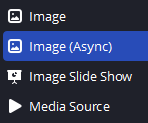
Configuration is exactly the same as for the original image source.
If you want to convert all your existing standard image sources to async image sources at once
- close OBS in case it is running
- make a backup of your scenes .json file
- open your scenes .json file in a text editor and replace all occurrences of "image_source" with "xObsAsyncImageSource" (in both cases including the quotes)
- start OBS and your image sources should have been converted To verify whether the conversion was actually applied click the plus icon to add a new source, select "Image (Async)" and check the list under "Add Existing", it should list your existing image sources.
-
Q: Will my OBS completely stop dropping frames when loading images with this source?
- A: Under ideal conditions yes, but that depends a lot on your system and configuration. If your computer is already maxing out its CPU usage even before the image load and/or you load a really large image you could still get lags/dropped frames, albeit a lot less compared to the original image source. E.g. in my tests when running OBS at 60 FPS and loading an unusually complex and big 5000x5000 .png file the original source would drop ~50 frames while the async image source would drop 5.
-
Q: Wow, that's cool, can I also have this for image slide show sources?
- A: OBS 30.1.X or higher already has a reworked slide show that also loads images asynchronously, so simply use the included slide show.
-
Q: Will there be a 32 bit version of this plugin?
- A: No. Feel free to try and compile it for x86 targets yourself, last time I checked it wasn't fully supported in NativeAOT.
OBS Classic still had a CLR Host Plugin, but with OBS Studio writing plugins in C# wasn't possible anymore. This has changed, with the release of .NET 7 and NativeAOT it is possible to produce native code that can be linked with OBS.
Refer to the building instructions for my example plugin, they will also apply here.
Many thanks to kostya9 for laying the groundwork of C# OBS Studio plugin creation, without him this plugin (and hopefully many more C# plugins following in the future) wouldn't exist. Read about his ventures into this area in his blog posts here and here.